 DockLatch
SETUP GUIDE
Keep the Mac Dock on one screen or the main display
To keep the Mac Dock on your main display, turn off Displays have separate Spaces in System Settings → Desktop & Dock. If you need separate Spaces, keep that setting on and use DockLatch to lock the Dock to one chosen display. The macOS option changes your multi-display workflow; compare the tradeoffs below before choosing.
Keep the Dock on the main display with macOS settings
Open System Settings → Desktop & Dock, then find Displays have separate Spaces in the Mission Control settings. With this setting off, the Dock appears only on the main display. This also changes how Spaces work across your displays, rather than locking the Dock to any display you choose. Sign out and back in if macOS asks you to apply the change.
Turning the setting off also prevents using Split View on your other displays and using Stage Manager. If you rely on independent Spaces or full-screen workflows across monitors, check those workflows before keeping the setting off. Apple’s Desktop & Dock guide explains the setting, and its Spaces guide explains working with multiple desktops.
To choose which monitor is the main display, connect your external display, open System Settings → Displays, select the display you want to use, and choose the main-display option under Use as. Apple’s Displays settings guide describes this control; available options depend on your connected displays. Merely choosing a main display does not disable the Dock on other displays while separate Spaces remains on.
Should Displays have separate Spaces be on or off?
Choose based on the workflow you need, rather than turning off Spaces just to hide a symptom.
- Main display only, without independent Spaces: try the macOS setting above first. You may not need an additional app if its tradeoffs work for you.
- Independent Spaces, Split View on another display, or Stage Manager: keep separate Spaces on. If you also want to keep the Dock on one chosen display, verify a display lock on your actual arrangement using the steps below.
- Dock missing from an upper or middle display: check the display arrangement and available edges first. A lock does not create a usable Dock position where the arrangement does not support one.
Keep separate Spaces and choose a Dock display
DockLatch works with separate Spaces enabled. It keeps the original macOS Dock on one selected display; it does not create a different Dock for every monitor.
- Download DockLatch and move it to Applications.
- Open the app, choose Grant Access…, and enable DockLatch in System Settings → Privacy & Security, under the permission name shown by the app. Return to the welcome guide and check for Access granted. This access lets DockLatch prevent other screens from summoning the Dock and locate the Dock.
- Choose Start 14-Day Free Trial, or enter your existing direct license. Check for Trial started or License activated, then choose Done.
- Click the DockLatch icon in the menu bar at the top of your screen. Select a display in the display diagram and turn on Keep the Dock on this display.
- Choose an available edge, size and auto-hide setting. DockLatch remembers settings for each connected display combination.
Some edges are unavailable because of the display arrangement. DockLatch indicates the positions that work; it cannot make macOS place its Dock on an unsupported edge. If your Dock still moves, check the lock, the selected display and the requested macOS permission before changing unrelated system settings.
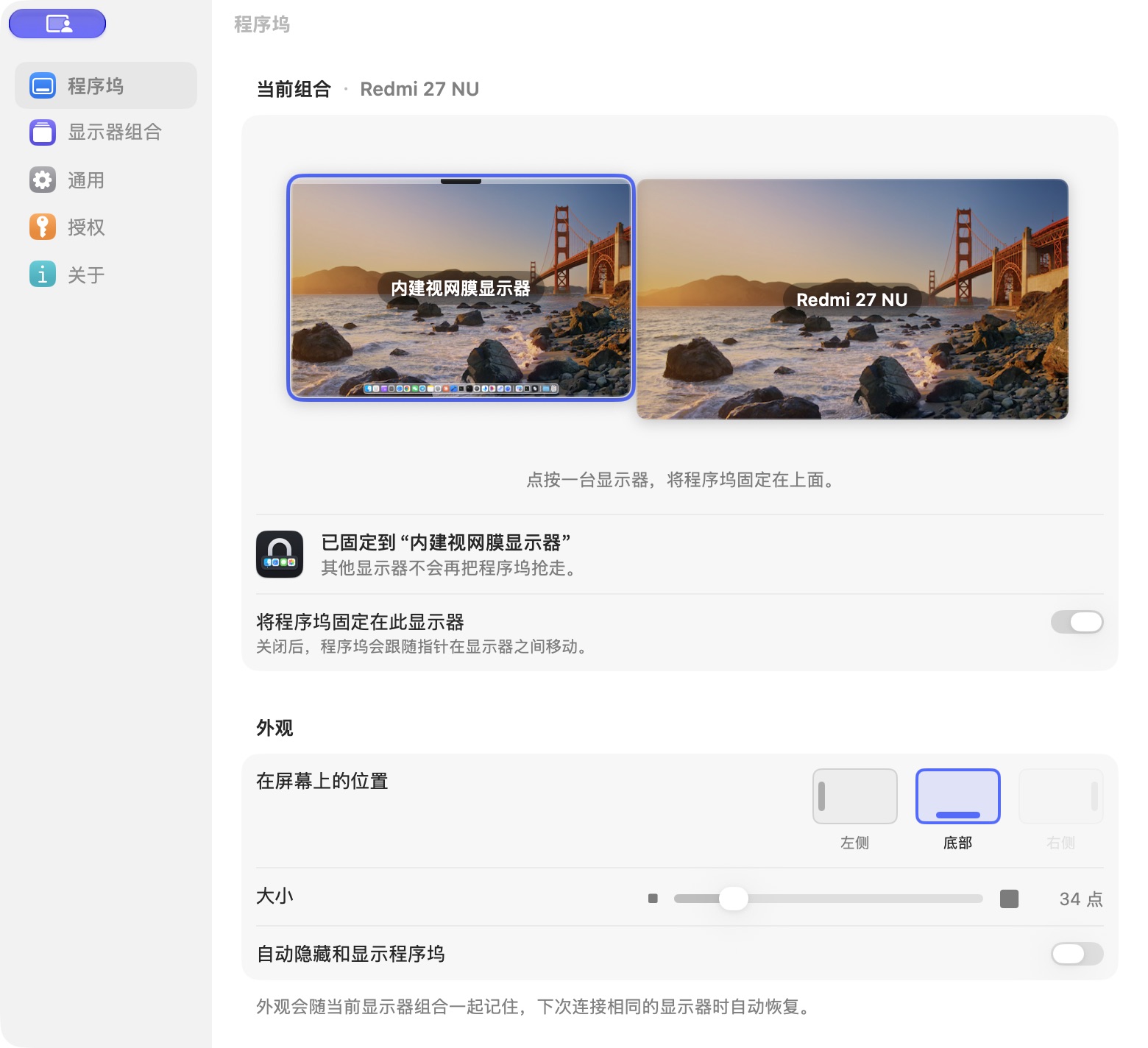
Captured from the direct edition on 23 October 2026. Select your own display in the diagram and use the lock switch below it, then check the result on your setup using the next steps.
Check that the lock works on your setup
Connect at least two displays and keep Displays have separate Spaces enabled. Use a Dock edge available in your arrangement, with the Dock visible on your chosen display.
- Turn Keep the Dock on this display off. Push the pointer against another display’s Dock edge as you normally would to summon it. Confirm that macOS can move the Dock there.
- Select your preferred display in DockLatch and turn the switch on. Repeat the same pointer action on the other display. The Dock should stay on your selected display.
- Check auto-hide on the selected display, if you use it. Reconnect your usual display combination and check that the selected display and appearance return.
If the Dock stayed put even with the switch off, you have not yet confirmed the difference. Retry with an arrangement where macOS can normally summon the Dock on the other display. A permission badge alone does not confirm that your display setup works.
Can’t find the app, or the switch is disabled?
DockLatch runs in the menu bar, with no Dock icon. Open it again from Applications or Spotlight to bring up settings. A crowded menu bar can hide the icon on Macs with a notch; the welcome guide explains how to rearrange menu bar icons.
If the switch is disabled, check both the requested system permission and Settings → License. Choosing Skip for Now in the welcome guide leaves those steps unfinished. If a trial request shows an error, check the displayed message and your connection to the license service before retrying; repeatedly clicking does not complete a failed trial request. The direct edition uses the network for trials, license validation and update checks, with no app analytics or tracking.
If DockLatch shows only one display, connect another before testing the lock. An enabled lock switch on a single-display setup does not demonstrate that another screen is blocked; check the display diagram again after connecting your second screen. If the chosen edge is unavailable, select an available edge. If the Dock still moves after the permission, trial/license and switch are ready, contact support with your macOS version, app version, display arrangement and the steps you tried. Never send your license code or payment details in a public post.
Compatibility, trial and purchase
The direct download supports macOS 15 or later on Apple silicon and Intel Macs. It provides a 14-day trial without an account. A direct lifetime license costs US$9.90, covers 3 Macs, and includes future updates without a subscription. When the trial ends, macOS resumes its normal Dock behavior and your saved setups remain.
Try DockLatch for 14 days, or see the direct license. For help with your display arrangement, contact DockLatch support.